 Watt2Ride
Found a plug that isn't on the map? Here's how to add it properly
October 13, 2026
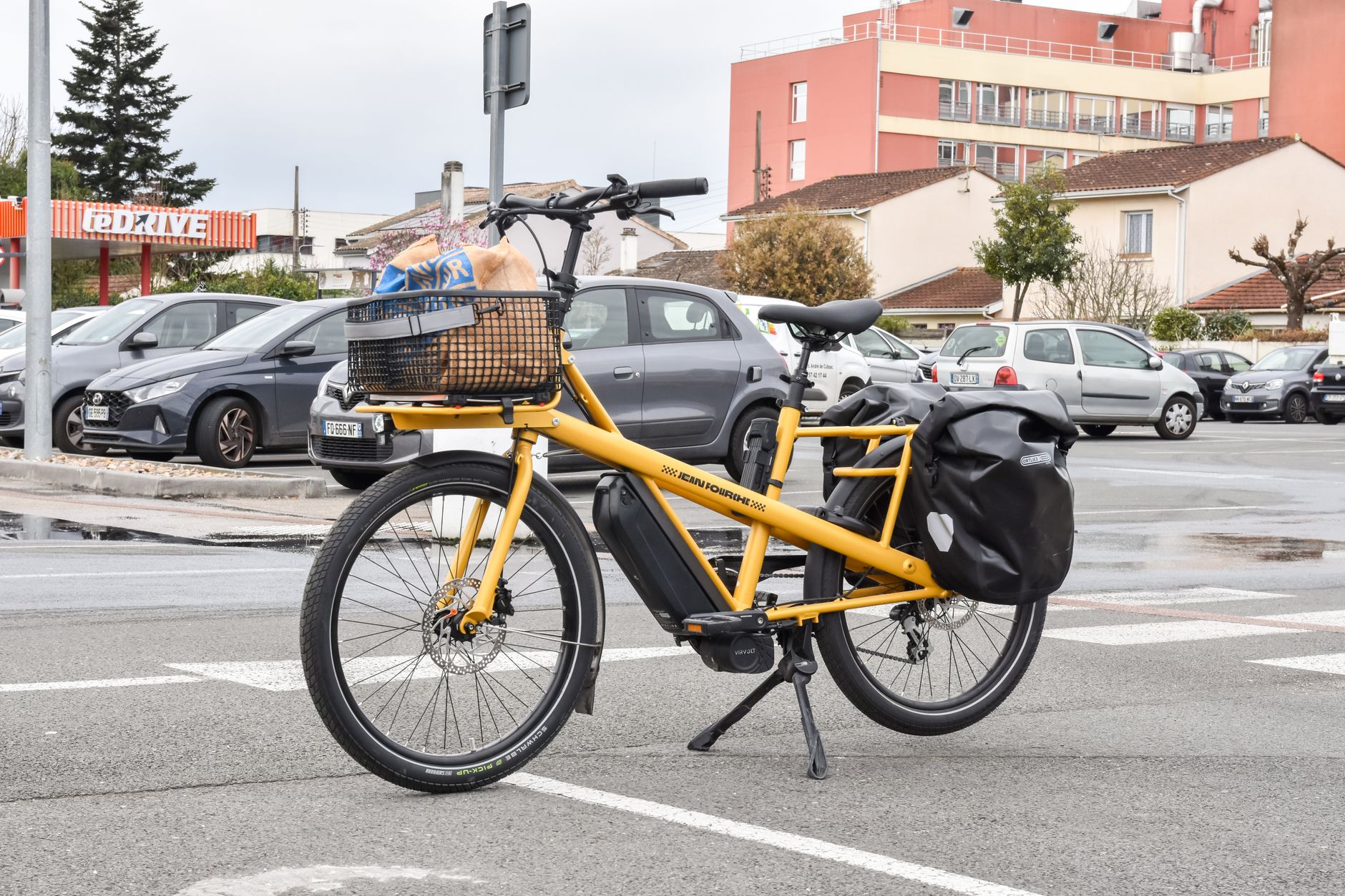
Has this happened to you? You're parked outside a café, your battery is lower than you'd like, and you ask at the counter whether they happen to have a socket. The owner looks at you, shrugs with a smile, and says "sure, plug it in round the back." You pull out your phone to save the spot for next time, open the map, and discover that this point simply doesn't exist on Watt2Ride yet. No pin, no entry, nothing. Part of you is a little disappointed, because you'd hoped to find it already there like it has been other times, but mostly you think about the next rider who'll pass through with a flat battery and, not knowing any better, will keep riding past looking for something further away.
Here's the good news: it only takes a couple of minutes to change that, and no technical skill required. In the app's menu you'll find Add a charging point, built exactly for moments like this. In this post we'll walk you through using it well, step by step: what to check before you send the report, how to place the point precisely, what to write in the optional fields, and what happens after you tap Send. It isn't a form to rush through just to tick a box. It's how the map actually grows, and it's the same process behind a good number of the points you already find marked today.
Before you add it, check it isn't already there
The first step, even before opening the form, is making sure that point isn't already somewhere on the map. It sounds obvious, but it happens more often than you'd think: maybe the point is there, just marked with the entrance round the back of the building, or the pin is slightly off from where you're standing right now, and at the zoom level you're looking at you simply don't spot it. Two separate pins for the same socket don't help anyone. They confuse whoever's planning a route, split the reviews between two entries, and over time make the map less reliable rather than richer.
To check calmly you've got two tools right at hand, both in the bottom navigation bar. Around me instantly shows everything already mapped within a few steps of where you're standing, handy in exactly the situation we described above, when you're parked outside the café with your phone out. Search lets you type an address or a city name and jump to a spot on the map even if you're planning from home, adding a point you noticed on a ride a few weeks back and never got round to reporting. It's also worth zooming out a touch to look at the whole block, not just the exact spot you're standing on: sometimes the pin is already there, just on a building a little further along than you'd expect.
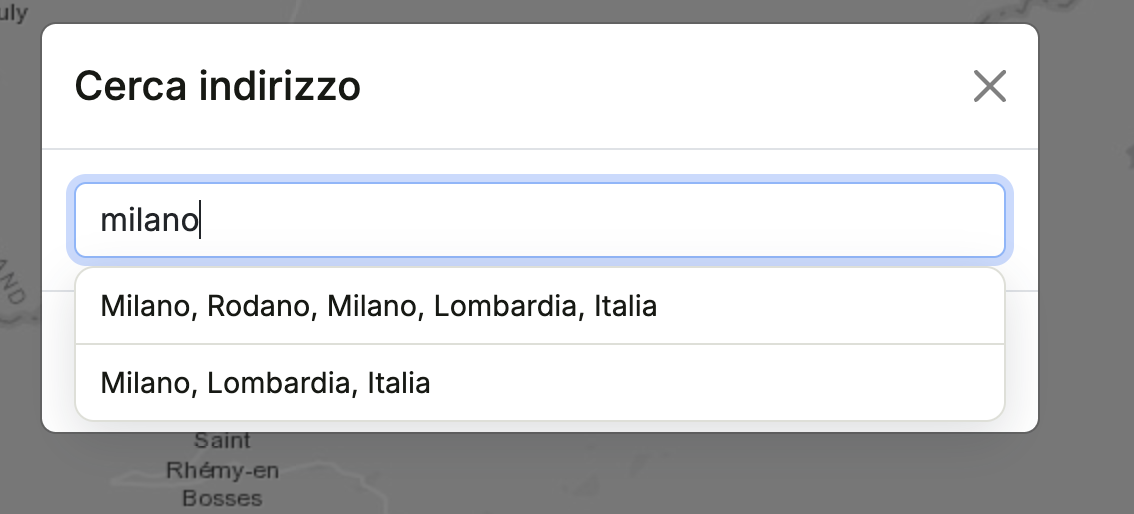
If after checking you're confident the point really is missing, that's your cue to add it. And if the point is there but something about it doesn't match what you're seeing, remember there's a different tool for that: the Suggest an edit button on the point's own details panel. No need to create a brand new point on top of an existing one just because one detail has changed.
The right spot, down to the metre
Once you've opened the Add a charging point form, the most important part is also the simplest: saying precisely where the socket actually is. The easiest way, if you're physically there, is the Use my location button. The app asks for permission to use your phone's GPS and, once it finds you, shows the margin of error in metres, something like "found, accurate to about eight metres." If that margin looks too wide, or if the pin lands in the courtyard next door instead of right in front of the café, you can simply drag it with a finger to the exact spot, or tap the map wherever it belongs. Every small adjustment gets a little confirmation message, just to let you know the correction was registered.
Why is thirty seconds on this detail worth it? Because whoever arrives after you, maybe with only a few kilometres of range left and the light starting to fade, won't feel like circling an entire block looking for a socket the map vaguely places "around there." A point marked accurate to the metre is the difference between a calm stop and five extra minutes of frustration. If you're not on site right now, say you're reporting from memory a point you spotted on yesterday's ride, you can type the address into the field instead: the app tries to locate it on its own, and if it can't, it tells you clearly, inviting you to try again with a bit more detail or to come back with your phone in hand when you can.
How it went, and what it actually offers
Further down the form you'll find How was it?, a small space for a star rating, optional but useful: it's the same mechanism behind the reviews you've probably already read on other points before deciding whether a detour was worth it, except here you're the one leaving the first impression for whoever comes next. No need to write an essay, just the honest feeling of the moment: whether the owner was friendly, whether the socket worked right away or you had to ask twice, whether the spot is easy or a bit awkward to reach with a loaded bike.
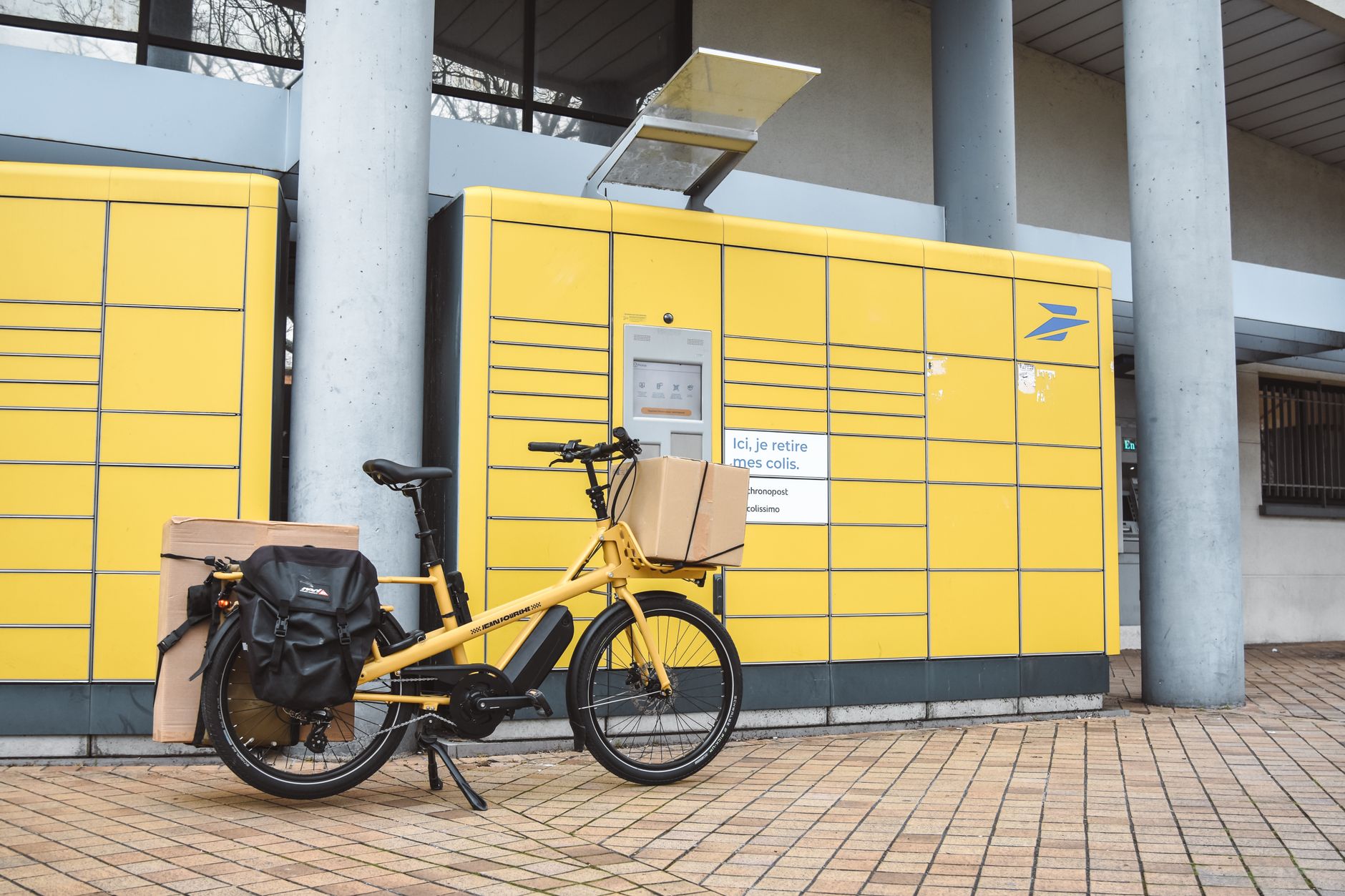
Right below that you'll find Features, a set of checkboxes to tick only if you're genuinely sure: Fast charge, Covered parking, Open 24/7, With repair service. It's the same principle we talked about with the fee badge on an existing point, where "Fee unknown" is honest while guessing "free" without knowing isn't: better to leave a box unticked than to invent an answer. If the café simply has a socket behind the counter with nothing special about it, it's perfectly fine to leave everything unticked. Every genuine detail you do add, though, is one more piece of information for whoever has to decide in a few seconds whether that point works for them, maybe because they're riding a cargo bike loaded with groceries and really do need somewhere covered to leave it while the battery charges.
A couple of lines is enough, then it's on us
The last field is Description, and here the rule you'd probably expect applies: two concrete lines are worth more than a generic paragraph. "Inside the café, ask at the counter" or "socket round the back, near the bike rack" are exactly the kind of detail that saves time for whoever shows up later and would rather not circle the building hunting for a plug. When you're ready, tap Send, and from there the job is ours: every report gets checked before it goes live on the public map, specifically so mistakes or unclear submissions don't end up confusing whoever relies on them.
Two practical details are worth mentioning up front, so they don't catch you off guard. Adding a point requires a registered account with a verified email address, a step that takes a minute the first time and then you never think about again, mostly there to keep a bit of accountability behind every report on the map. And if you send a string of reports in a short span of time, the app will gently ask you to slow down before sending more. It's not a wall, just a way to keep the review queue manageable. After that, all that's left is for us to check the report and add it to the map, and the next time someone pulls up outside that same café with a flat battery, thanks to the two minutes you spent today, they won't have to shrug along with the owner wondering how to mark the spot for next time.